Block channels
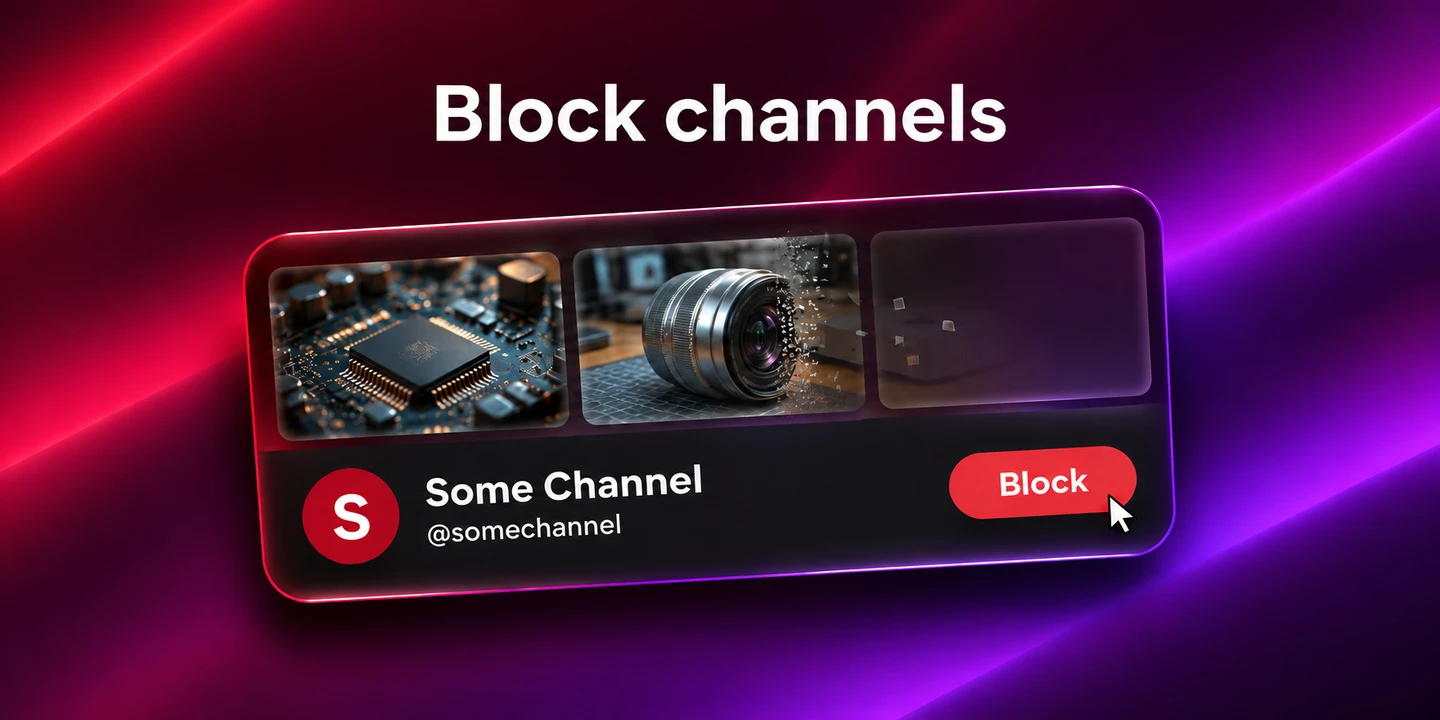
Block channels hides a channel’s videos, Shorts, live streams, posts, playlists and comments on YouTube, along with videos that credit it as a collaborator. The help guide explains blocking and what it can’t reach.
Where blocked channels disappear
Retube removes a blocked channel’s items from YouTube’s data before the page shows them, so they don’t flash on screen. That covers Home, Subscriptions, search results with their Shorts shelves and channel results, Up next, the videos at the end of a video, autoplay, comments, the Shorts player, other channels’ pages and the sidebar. Swiping to a blocked Short skips it.
Block from a menu or a channel page
Choose Block channel in the three-dot menu of a video, Short or comment, or under the video you’re watching. Undo in the message that follows unblocks it. Channel pages get a Block button beside Subscribe.
A channel can’t be in a feed and blocked at once. Blocking a channel that’s in your feeds asks first, then takes it out of them, and Undo puts it back.
Blocked channel pages
Opening a blocked channel’s video, Short, live stream or channel page from a link or a bookmark shows You blocked with Go back and Hold to unblock, and the video doesn’t play. Hold to unblock works only when held, so a stray click never brings the channel back.
The Blocked tab
Retube’s side panel has a new Blocked tab that lists every channel you’ve blocked, newest first. Press Unblock, then Confirm on the same button, to bring one back, or paste a @handle, channel URL or channel ID to block a channel from there. Backups include blocked channels, and clearing local data unblocks them all.
Blocking doesn’t reach ads, mentions of a channel by others, live chat, notifications, or your own lists such as History and Watch later. It works on www.youtube.com in this browser, not in YouTube’s mobile and TV apps, and the list doesn’t sync to your other browsers.