Feed controls on the channel page
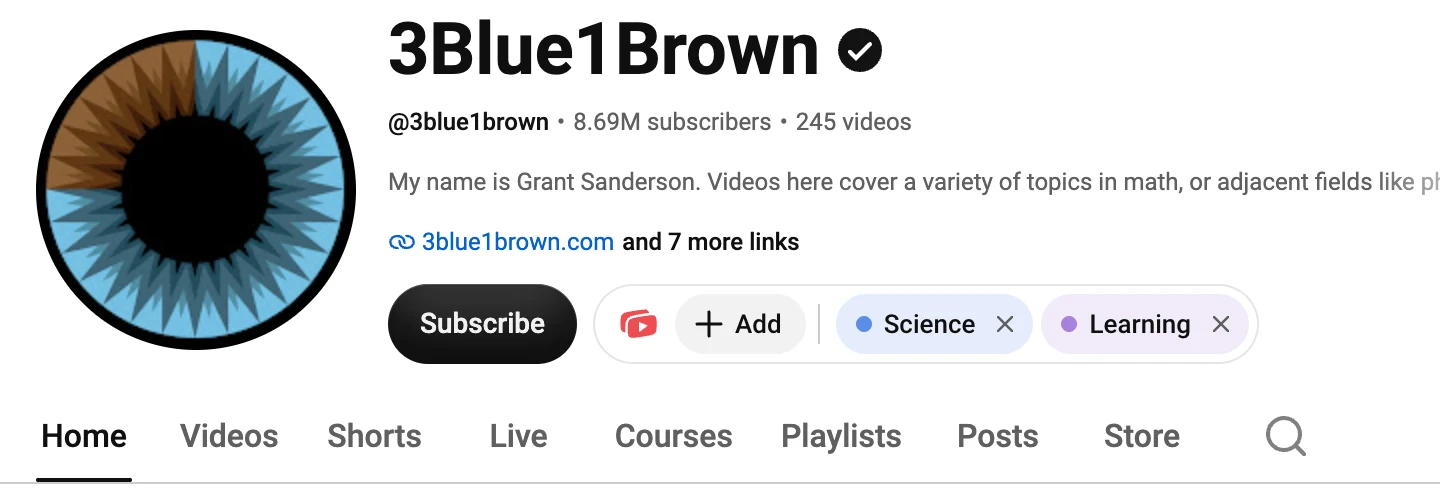
Feed controls are now available on the channel page. Right beside Subscribe, see which of your feeds a channel is in, add it to another feed, start a new feed with it, or remove it, without leaving the page or opening Manage channels.
A channel’s feeds beside Subscribe
The feeds a channel is in appear as colored chips in a Retube group to the right of Subscribe. The chips overlap so each feed’s color shows. Hover over them, or move keyboard focus into them, and they spread out with their names. Select a chip to open that feed. On touch screens, the first tap spreads the chips.
On narrow windows, the group sits on its own line below Subscribe.
Add to a feed or start a new one
Add lists your other feeds, with how many channels each holds. Select one to add the channel. New feed creates a feed that already contains the channel; name it and Retube picks its color.
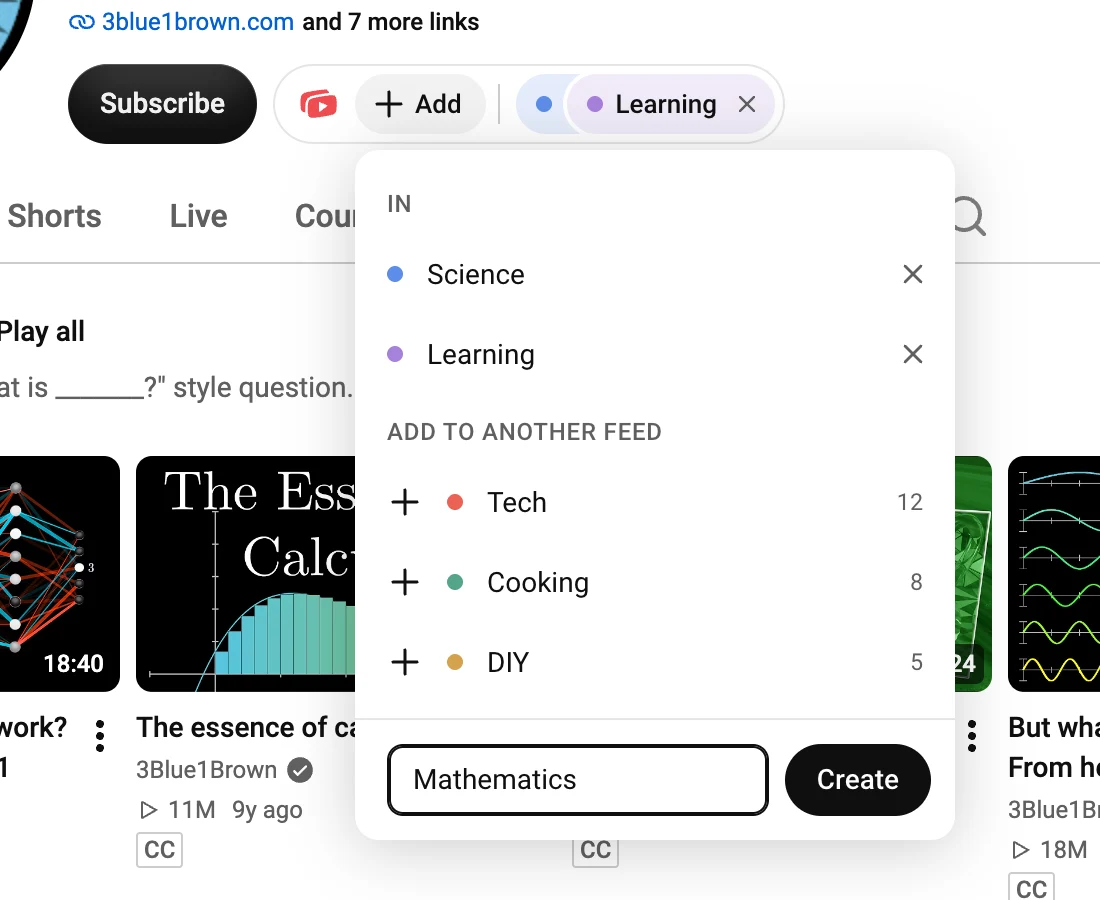
When the channel isn’t in any of your feeds yet, the group reads Add to feed. The help guide explains adding from a channel page.
If this is your first feed, Retube points to it in YouTube’s sidebar once you close the list.
Remove with Undo
The × on a chip removes the channel from that feed, and Undo puts it back. As in Manage channels, removing a channel from its last feed also removes it from your library; Undo restores it.