Hide watched videos
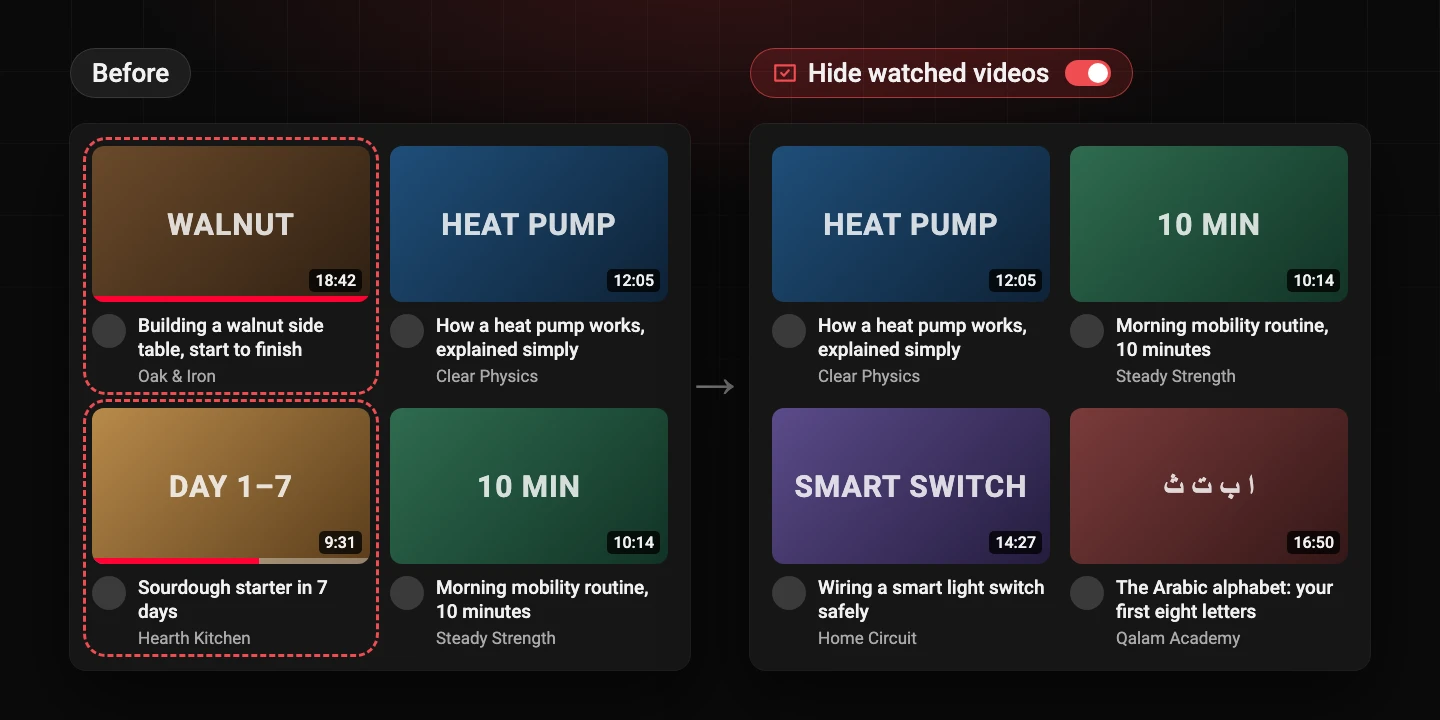
A new Watched videos group in Levers hides videos you’ve already watched, and Turn off autoplay keeps the next video from starting on its own. The help guide lists each Watched videos lever and what it hides.
Hide watched videos
Five switches cover different parts of YouTube:
- Hide on Home
- Hide on Subscriptions and Retube feeds
- Hide in search results
- Hide in related videos, beside or below the player
- Hide on channel pages
A video counts as watched from the red progress bar YouTube shows on its thumbnail for your account. Counts as watched sets how much of the bar counts for all five: Any progress, Half watched or Nearly finished (90%), so a video you only sampled can stay. The cards left close up, so Subscriptions shows what you haven’t seen yet.
Nothing hides while you’re signed out, since YouTube shows no progress then. Shorts have no progress bar, so they stay. The playlist beside a video, Watch later and History keep their watched videos.
Watched videos in your feeds
Your Retube feeds follow Hide on Subscriptions and Retube feeds and the same Counts as watched setting. A video you just watched leaves a feed after the refresh button. When every video a tab has loaded is watched, the tab says so instead of showing an empty grid. After a few pages in a row of only watched videos, older videos wait for Load more videos.
Turn off autoplay
Turn off autoplay, in the Player section, switches off YouTube’s Autoplay toggle and keeps it off, so a video stops at its end. It works on playlist and Mix pages too, where YouTube hides the toggle, and in the miniplayer. To use autoplay again, turn the lever off. Signed in, YouTube saves the change to your account.
A Mix moves to its next video whatever the toggle says, so with the lever on, a Mix’s next video waits paused at its start until you press play, K or Space, or select a video. Playlists you picked, such as your own or Watch later, still move on.